How to Resize Photos Without Making Them Blurry
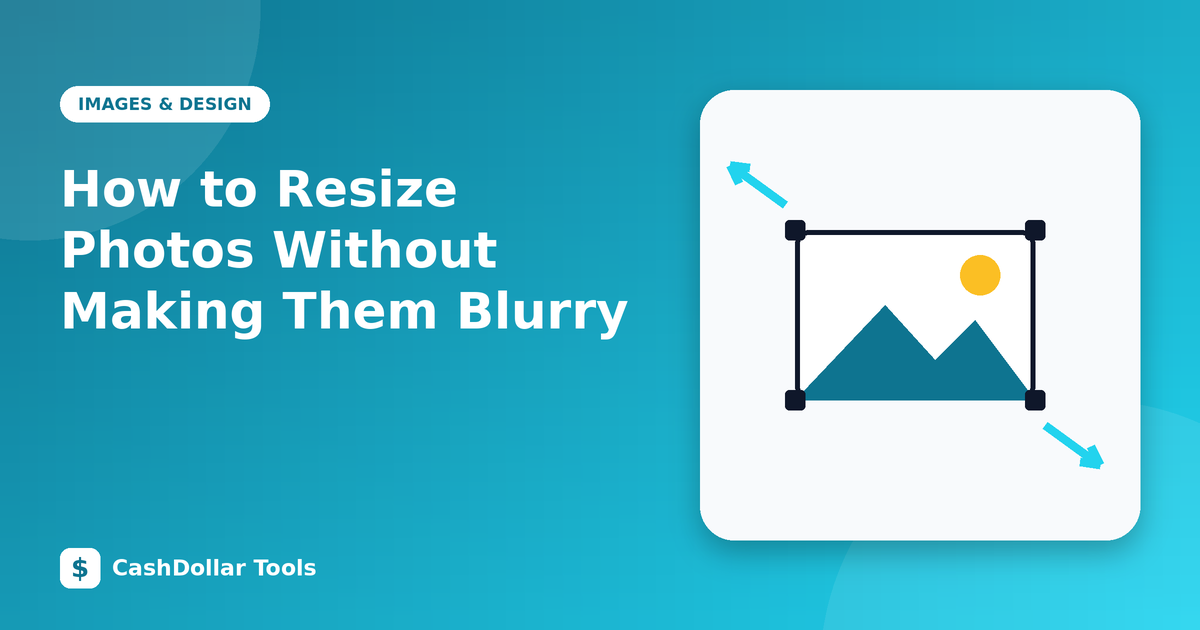
Resizing is one of the most common image tasks, and one of the easiest to get wrong. Understanding what happens to the pixels explains almost every blurry result.
Pixels, not inches
A digital photo is a grid of pixels. "Resizing" means producing a new grid with a different number of pixels. When you reduce the size, the software averages groups of pixels. When you enlarge, it has to invent new pixels by guessing from neighbours.
Shrinking is safe; enlarging is not
Reducing a large photo to a smaller size generally looks fine, because you are discarding detail you did not need. Enlarging a small photo makes it soft, because the detail was never captured. If you must enlarge, do it modestly and accept some softness. Starting with the highest-resolution original is always better.
Keep the aspect ratio
Changing width and height independently stretches the picture. Lock the aspect ratio, or crop first to the shape you need, then resize. Cropping and resizing are different operations: cropping removes parts of the image, resizing scales the whole.
Choose the right target size
- Web page: the displayed width, or up to twice that for high-density screens.
- Email: about 1200 to 1600 pixels on the long side is enough for viewing.
- Social media: follow the platform's recommended dimensions.
- Print: divide the physical size by the resolution you want. A 6 × 4 inch print at 300 dpi needs 1800 × 1200 pixels.
Sharpening after reduction
Reduced images can look slightly soft. A gentle sharpening step after resizing, not before, restores crispness. Overdoing it creates bright halos around edges, so use a light touch.
Avoid repeated edits
Each time a JPEG is opened, edited and saved, it is recompressed. Work from the original every time and export a new copy for each use. Keep file names clear: beach-original.jpg and beach-1200w.jpg.
Compression after resizing
Resize first, then compress. If a resized image is still large, lower the JPEG or WebP quality a little instead of reducing the dimensions further.
Metadata and privacy
Photos often carry the camera model, date and GPS coordinates. Resizing tools may keep or strip this data. Before posting online, check whether location information is included.
Quick routine
- Open the original.
- Crop to the desired shape.
- Resize to the target dimensions with the ratio locked.
- Export as JPEG or WebP at a sensible quality.
- View at 100 percent to check sharpness.
Follow these steps and your photos will stay clean at every size.