JPG, PNG, WebP or SVG: Which Image Format Should You Choose?
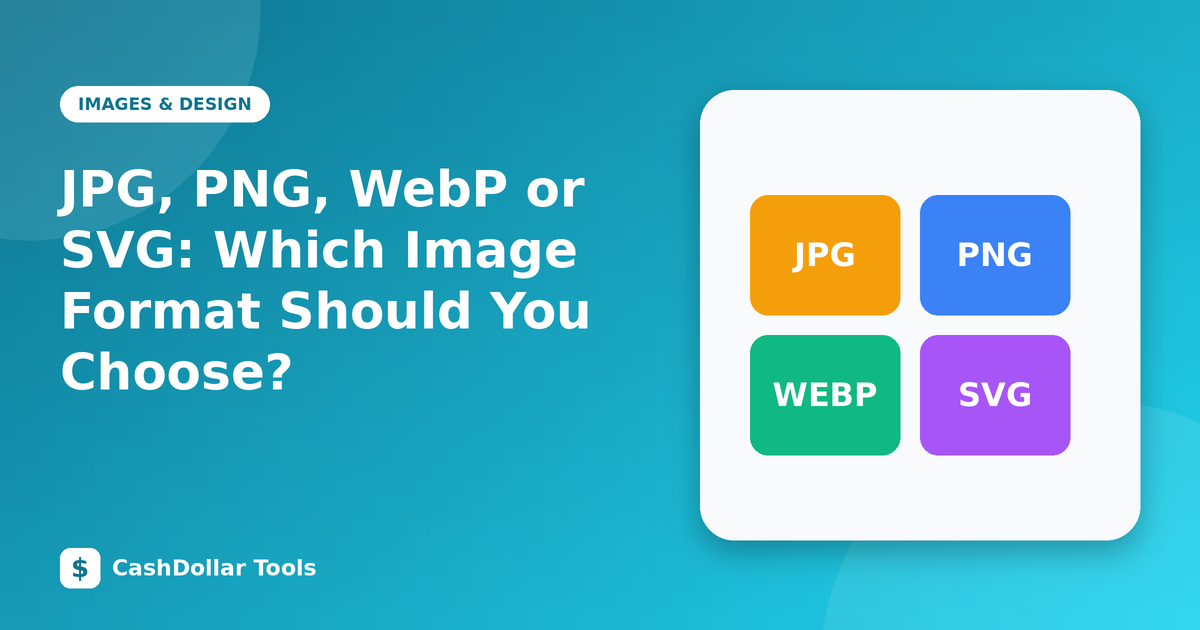
Picking an image format is a trade-off between quality, size, transparency and compatibility. Once you know what each format is good at, the decision becomes quick.
JPG (JPEG)
- Best for: photographs and images with smooth colour gradients.
- How it works: lossy compression that discards fine detail.
- Strengths: small files, supported everywhere.
- Weaknesses: no transparency, blurs sharp text and thin lines, degrades each time you re-save.
PNG
- Best for: screenshots, diagrams, logos and anything with text or sharp edges.
- How it works: lossless compression, so every pixel is preserved.
- Strengths: supports transparency, crisp lines.
- Weaknesses: large files when used for photographs.
WebP
- Best for: almost everything on modern websites.
- How it works: supports both lossy and lossless modes plus transparency and animation.
- Strengths: typically smaller than JPEG or PNG at similar quality, and supported by all major current browsers.
- Weaknesses: some older desktop software and email clients may not open it, so keep a JPEG or PNG copy for sharing.
SVG
- Best for: logos, icons, simple illustrations and charts.
- How it works: it is not made of pixels. It describes shapes with mathematical instructions, written in XML.
- Strengths: infinitely scalable without blur, tiny for simple artwork, can be styled with CSS.
- Weaknesses: unsuitable for photographs; always sanitise SVG files from unknown sources because they can contain scripts.
Quick decision guide
- Is it a photograph? Use WebP or JPG.
- Is it a logo or icon? Use SVG, with PNG as a fallback.
- Is it a screenshot or a chart? Use PNG or lossless WebP.
- Does it need transparency? PNG, WebP or SVG.
- Will it be emailed or opened in old software? JPG or PNG are safest.
Other formats to know
GIF supports simple animation but only 256 colours; short videos are usually a better choice. AVIF often achieves the smallest files but is slower to encode and has less editing support.
Practical tips
- Keep an original master file in a lossless format.
- Resize before you compress.
- Use descriptive file names such as
red-running-shoes.webp, notIMG_4382.webp. - Add alt text to every meaningful image.
Choose the format for the content, not the other way around.