How to Password-Protect a PDF Properly
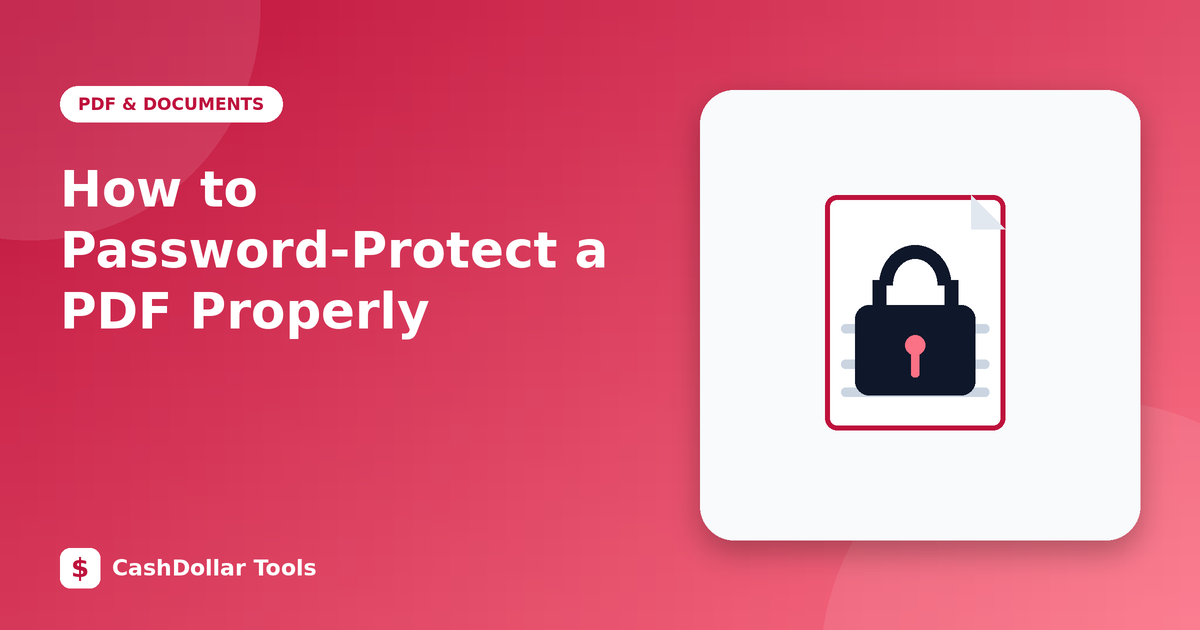
A PDF that contains salary details, medical results or a signed agreement should not travel by email unprotected. Adding a password is simple, but doing it correctly takes a little care.
Two kinds of password
- Open (user) password: required to view the file at all. This is real protection against someone who gets the file.
- Permissions (owner) password: lets anyone open the file but restricts printing, copying or editing. Many programs honour it, but it is a polite barrier, not strong security.
If the content is confidential, you want an open password.
The dependable way
Use software you already trust, on your own computer, while exporting the file:
- Microsoft Word: File → Export → Create PDF → Options → "Encrypt the document with a password".
- LibreOffice: File → Export as PDF → Security tab → set an open password.
- macOS Preview: File → Export… → check Encrypt, enter a password.
- Adobe Acrobat: Protect → Encrypt with Password.
Choose AES-256 encryption if offered. Older 40-bit and 128-bit RC4 options are weak and should be avoided.
Be careful with online services
Many websites claim to add passwords to PDFs. Some work by uploading your file to a server, which defeats the point for a confidential document. Others do not encrypt at all. Prefer local tools, and test the result: close the file, reopen it and confirm that a password prompt appears. Better still, open it in a second program.
Choosing a good password
- Use at least 12 characters, ideally a passphrase of four or five unrelated words.
- Avoid names, birthdays and anything on a public profile.
- Do not reuse a password from an email or banking account.
- Store it in a password manager.
Sharing the password safely
Never send the password in the same email as the file. Use a separate channel, such as a phone call or a messaging app. If the document is highly sensitive, agree on the password in advance.
What to do if you forget it
Strong encryption has no back door. If you lose the password, the content may be unrecoverable. Keep an unprotected original in a secure place, such as an encrypted drive, so you are never locked out of your own work.
Remember the limits
A password protects the file in transit and at rest, but not from the person you give it to. Once opened, a reader can screenshot or copy information. For legal authenticity, add a digital signature as well.
Doing it locally, with strong encryption and a strong password, takes under a minute and meaningfully reduces risk.