How to Merge PDF Files Without Losing Quality
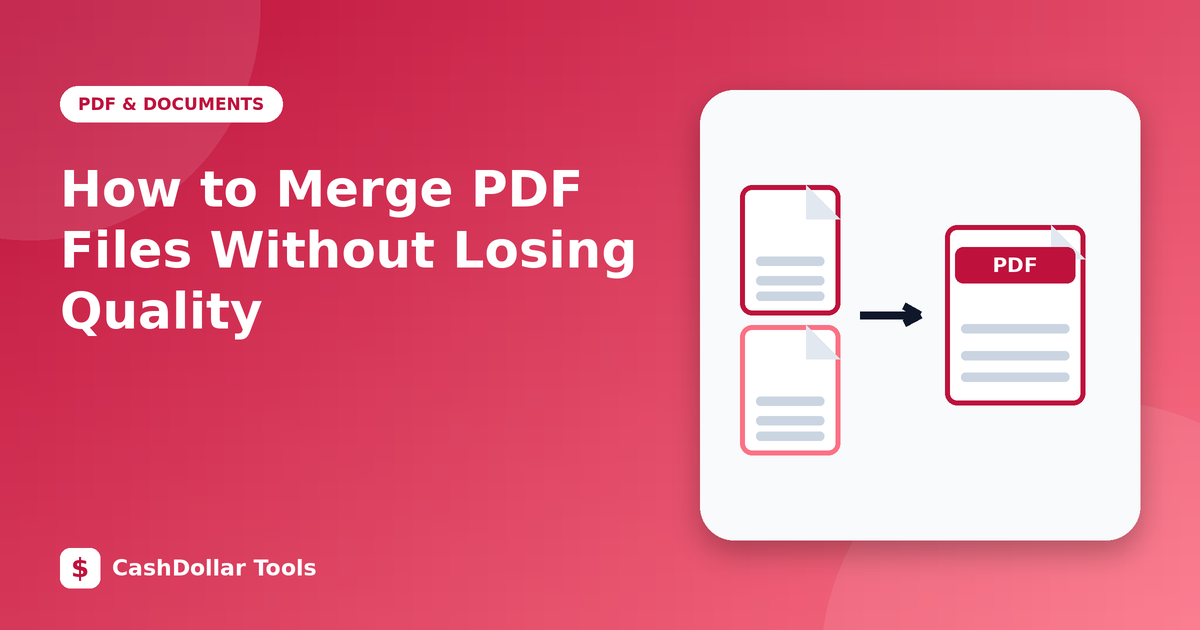
Merging PDFs sounds trivial, yet it is easy to end up with pages in the wrong order, a bloated file or a document that looks inconsistent. This guide shows how to combine files cleanly and what to check before you share the result.
Why merging does not reduce quality
A PDF stores pages as instructions plus embedded fonts and images. A proper merge copies those page objects into a new file; it does not re-draw or re-compress them. That means text stays sharp and images keep their original resolution. Quality problems come from tools that convert pages to pictures first, so choose a method that preserves the original page content.
Before you start
- Gather the files in one folder and give them names that sort in reading order, for example
01-cover.pdf,02-report.pdf,03-appendix.pdf. - Check page sizes. Mixing A4 and US Letter pages is legal, but the document will look uneven when printed.
- Remove unwanted pages such as blank sheets or scanner separator pages first.
- Fix rotation so every page opens upright.
Merging step by step
Add your files, arrange them in the order you want, and start the merge. Then open the new file and scroll through every page. Look at the first and last page of each original section to be sure nothing was cut off.
Common problems and fixes
- The file is huge. One of the originals probably contains large scanned images. Compress it separately before merging.
- Fonts look different. If a source file did not embed its fonts, the viewer may substitute others. Re-export the original with fonts embedded.
- Links stopped working. Internal links that pointed to page numbers can break after pages are reordered. Test important links.
- A form field vanished. Interactive forms sometimes lose their fields when merged. Fill and flatten the form first if you only need to keep the answers.
Tips for professional results
- Add a cover page and, for long documents, a simple contents page with page numbers.
- Keep headers and footers consistent by exporting all source files from the same template.
- Save a copy of every original so you can redo the merge if something changes.
- Name the final file clearly, including a date or version.
Privacy note
Merged PDFs often contain contracts, invoices or personal records. Using a tool that processes files inside your browser means the documents never travel to someone else's server. Our merge tool works that way, and you can check it in your browser's network tab.
Quick checklist
- Order correct
- Orientation correct
- No blank or confidential pages left in
- File size reasonable
- Metadata (author, title) tidy
Ten careful minutes at the end are cheaper than sending a corrected version later.