How to Reduce PDF File Size for Email (Without Making It Unreadable)
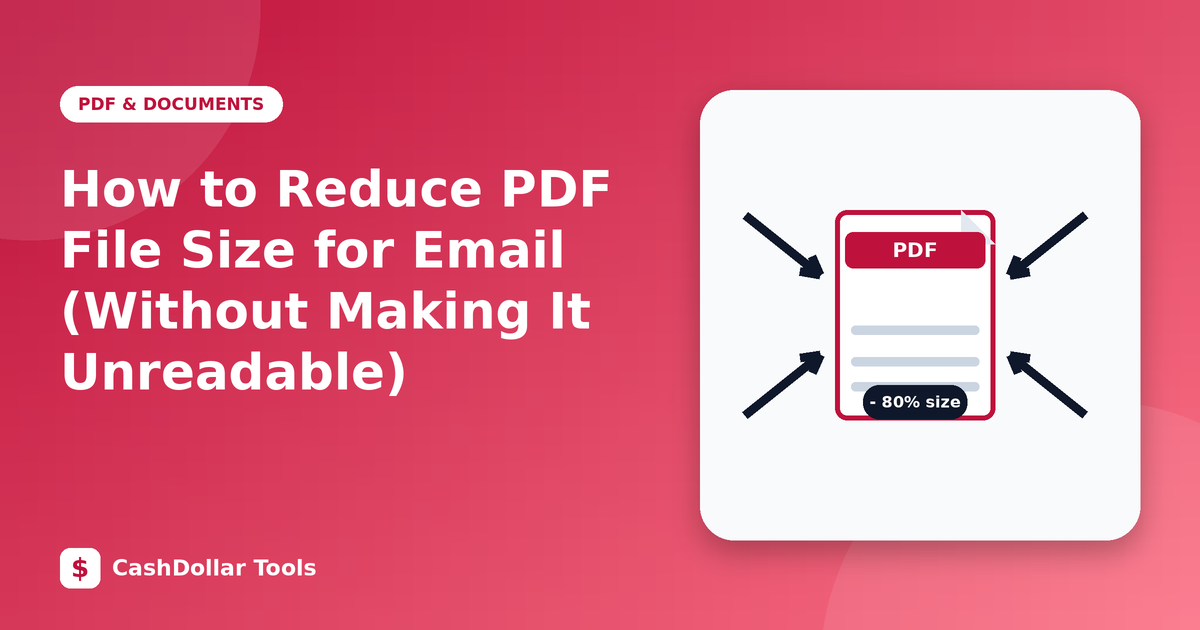
You finish a document, attach it to an email, and the message bounces because the file is too big. Many email services cap attachments at roughly 20 to 25 MB, and smaller limits are common in company systems. Here is how to cut a PDF down sensibly.
Why PDFs become large
- Scanned pages. A scan is a photograph of paper. A 300 dpi colour scan of one page can easily be a megabyte or more.
- High-resolution images pasted from cameras or design tools.
- Embedded fonts, especially several full font families.
- Hidden extras: attachments, layers, metadata and edit history.
Text-only documents are tiny. If your file is big, images are almost always the reason.
Methods that work
1. Reduce image resolution
For on-screen reading, 100 to 150 dpi is usually enough. For printing, keep around 200 to 300 dpi. Lowering the resolution of oversized images gives the largest savings.
2. Choose grayscale for text documents
If a scanned contract is black text on white paper, saving it as grayscale or black and white removes colour data you do not need.
3. Re-export instead of re-scanning
If you still have the original Word or design file, export a new PDF with the "minimum size" or "web" preset. This beats compressing an already finished file.
4. Remove what you do not need
Delete extra pages, unused attachments and thumbnails. Splitting a large document into parts is another honest solution: send two emails instead of damaging one file.
5. Use a cloud link for very large files
If the document must stay at high quality, share a link from a storage service rather than an attachment.
What to expect honestly
Compression is a trade-off. Aggressive settings turn small print blurry and can make scanned stamps or signatures harder to read. Always zoom in to 100 percent and check the smallest text, numbers in tables and any signatures. If something is hard to read, undo and choose a gentler setting.
Be aware that some methods convert each page to an image. That reduces size reliably, but you lose the ability to select or search text unless the file is run through OCR afterwards. Know which trade-off you are making before you send an important document.
A sensible target
Aim for the smallest size that still looks professional. For most email use, under 5 MB is comfortable and opens fast on a phone.
Checklist before sending
- Open the compressed file and scroll every page.
- Zoom into tables, footnotes and signatures.
- Check that links and form fields still work.
- Keep the original safe.
With a little planning, big attachments stop being a problem.